Beta feature
Version History is currently on Beta, available on the Professional and Enterprise plans. Reach out to the Preset Support Team to have this feature enabled.
Overview
Preset records each saved change to your charts and dashboards. With version history you can see who changed what and when, preview an earlier version, and restore an earlier version or create a new chart or dashboard.
Version history covers charts and dashboards. Changes to a dataset don't have their own history; they appear as related changes in the history of the charts and dashboards that use the dataset.
Open version history
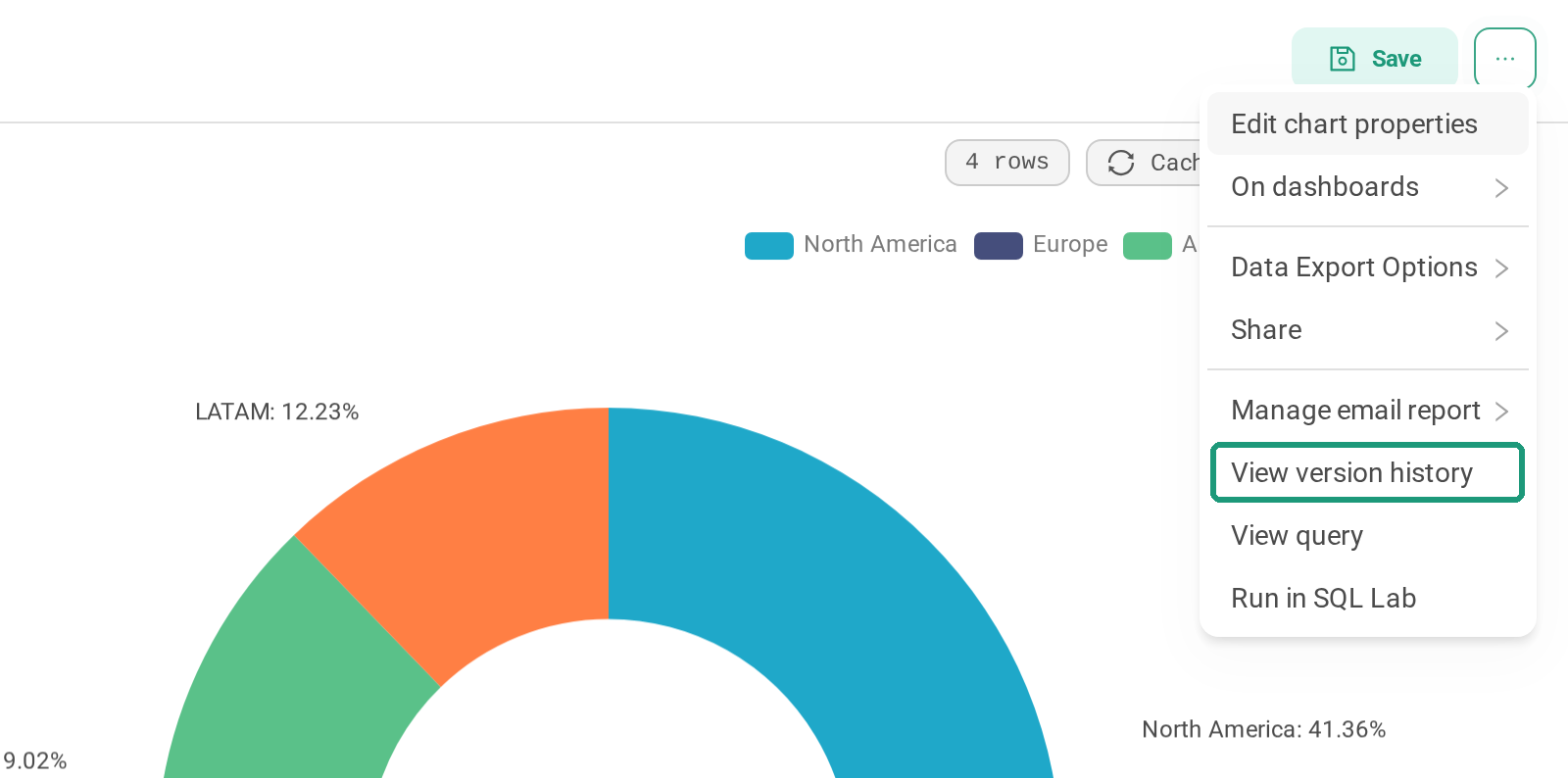
Chart: open the chart in the Chart Builder, select the ... menu at the top right, then View version history.
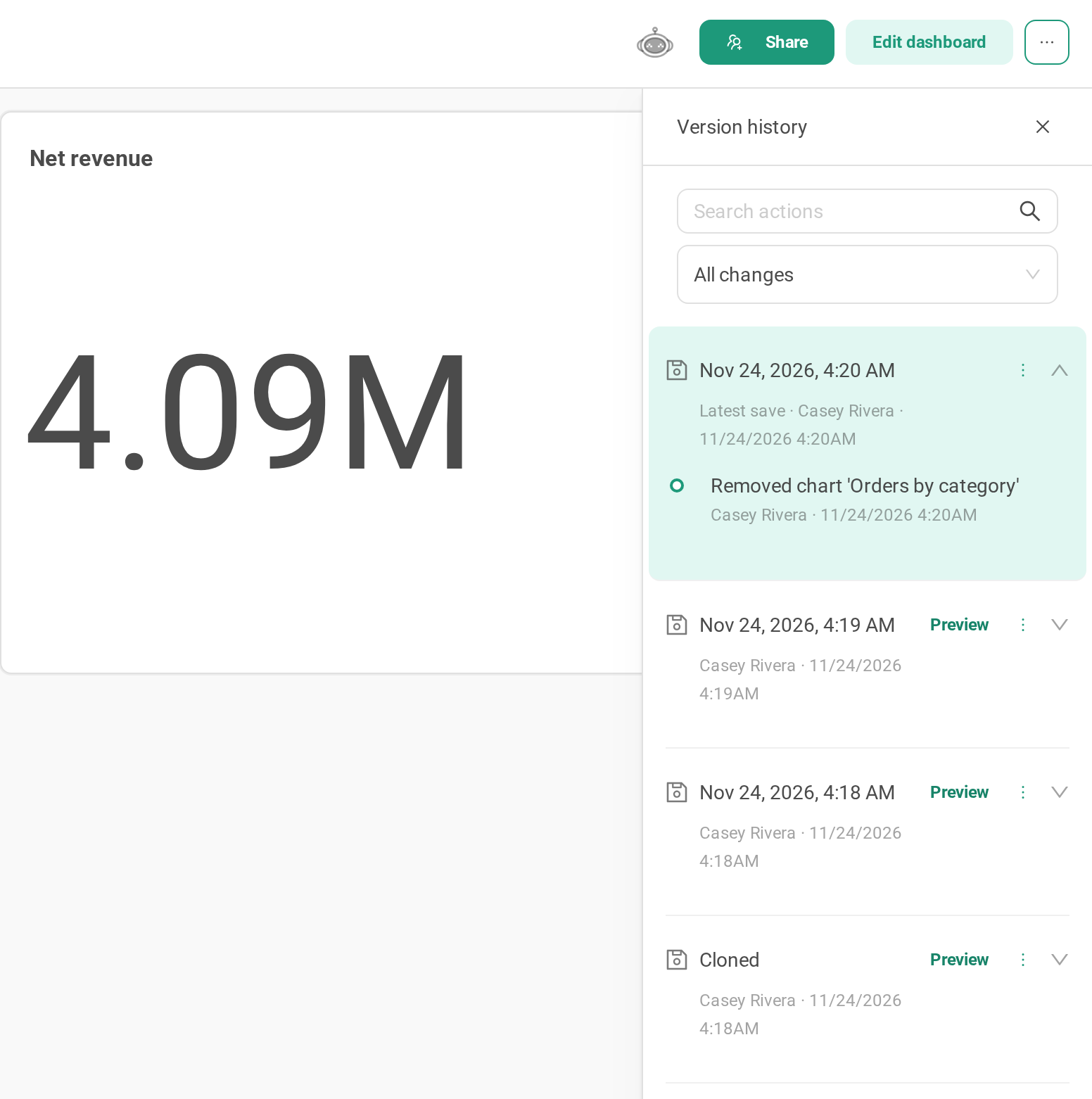
Dashboard: open the dashboard (not in edit mode), select the ... menu in the header, then View version history.
You need to be able to edit the chart or dashboard (Editor or Workspace Admin). The option is hidden for viewers and in embedded dashboards.
Read the history
The Version history panel lists changes, newest first.
Current version is at the top.
Each save shows who made it, when, and a short summary, such as "Chart renamed to 'Revenue by region'" or "Added filter on 'country'". Large saves expand with Show N more changes.
The oldest entry marks where history starts (Created, Imported, Cloned or First tracked save).
Some entries, such as "Added a chart" or "Removed a chart" on a dashboard, record a change but have no saved version, so they can't be previewed, restored or opened as new.
To narrow the list, use Search actions, or choose All changes, This chart only (or This dashboard only) and Related items only. Related items are changes to things the chart or dashboard depends on, such as its dataset.
Preview an earlier version
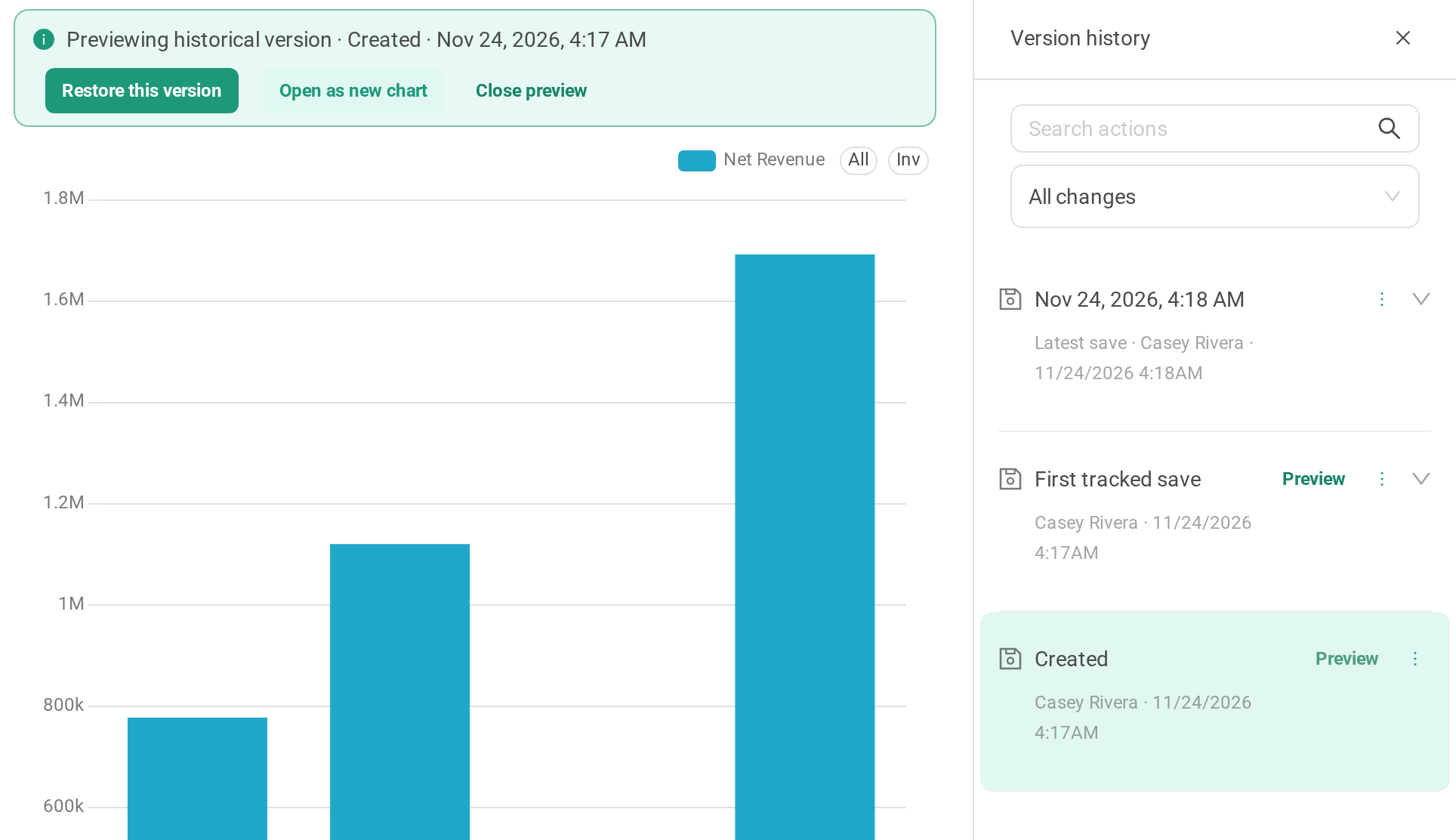
Select a version to preview it. A banner shows which version you're looking at, and you can't edit or save while previewing.
Charts show the earlier version, including its data.
Dashboards show the earlier layout, filters and settings. Charts on a previewed dashboard show their current definitions, not how they looked then.
From the banner you can Restore this version, Open as new chart (or dashboard), or Close preview.
Restore an earlier version
Preview the version you want.
Select Restore this version, then confirm.
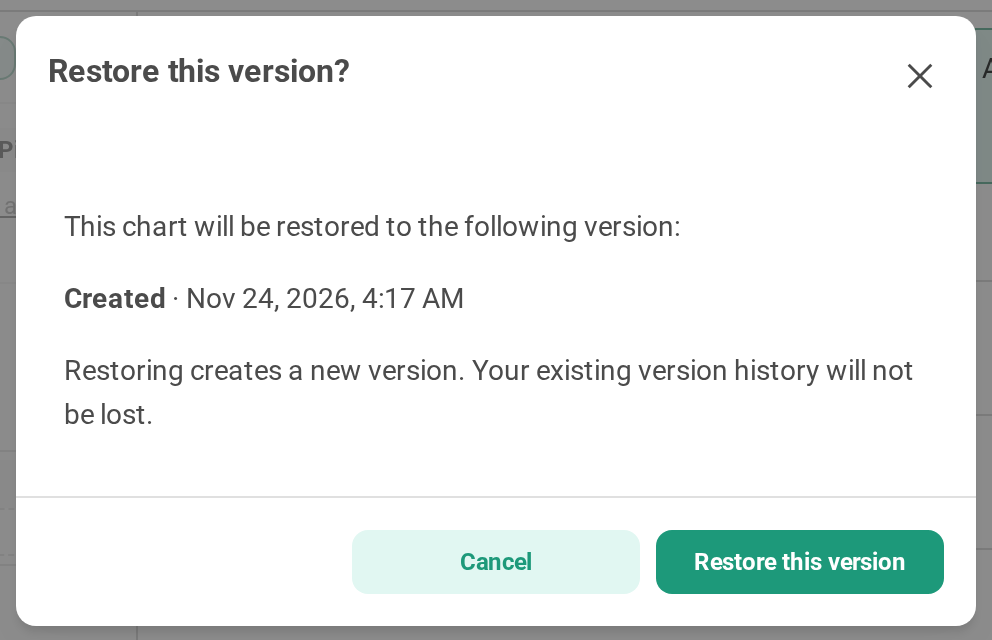
Restoring doesn't erase anything: the earlier version is saved as a new current version, so you can go back. If you have unsaved changes, save or discard them first. Open as new leaves the original untouched and creates a copy named with the original name and the date.
A version can't be restored when:
Its data is gone. The dataset the chart used has been permanently deleted. An archived dataset is fine: recover it first.
It's too old. It's older than your plan keeps.
Its columns have changed. Columns or metrics it relied on have since been replaced.
When you restore a dashboard, charts deleted since that version aren't brought back, and Preset tells you how many were skipped. Restoring a dashboard can also remove charts that were added after that version.
What isn't recorded
Permission or ownership changes, and changes made while version history recording was off for your workspace.
How long history is kept
Plan | History kept |
|---|---|
Professional | 30 days |
Enterprise | 180 days |
When a chart or dashboard is permanently deleted, its history is deleted with it, even if it's younger than this limit. See the page on recovering archived items.
FAQ
Who can restore a version? Anyone who can edit the chart or dashboard.
Can I compare two versions side by side? Not yet. Use preview and the change summaries.
Why does an older chart show a "settings migration" entry? The first save after the feature is enabled can record a one-time update to how the chart's settings are stored. Nothing about the chart changed.