
Role-Based Access Control (RBAC)
- 05 Mar 2026
- 5 Minutes to read
- Print
- DarkLight
- PDF
Role-Based Access Control (RBAC)
- Updated on 05 Mar 2026
- 5 Minutes to read
- Print
- DarkLight
- PDF
Article summary
Did you find this summary helpful?
Thank you for your feedback!
Role-based Access Control Requirement
Role-based access control is only available for the Professional and Enterprise plans. Managing RBAC also requires the Workspace Admin role.
Workflow for RBAC
To set up Role Based Access Control, you'll follow this flow:
Invite a user to a team
Add them to a workspace
Add them to a data access role; and,
Control data access with row level security (RLS).

Role Details
The available workspace roles are as follows: Workspace Admin, Creators (Primary, Secondary, Limited, and Visualization), Viewer, Dashboard Interactor, and Dashboard Viewer.
Workspace role definitions are as follows:
Feature | Workspace Admin | Primary Creator | Secondary Creator | Limited Creator | Visualization Creator | Viewer | Dashboard Interactor | Dashboard Viewer |
|---|---|---|---|---|---|---|---|---|
Dashboards | Read, Write Access, Embed Access | Read, Write* Access | Restricted Read*, Write* Access | Restricted Read*, Write* Access | Restricted Read*, Write* Access | Restricted Read* Access | Restricted Read* Access | Restricted Read* Access |
Charts | Read, Write Access | Read, Write* Access | Restricted Read*, Write* Access | Restricted Read*, Write* Access | Restricted Read*, Write* Access | Restricted Read* Access | No | No |
Drill to Detail | Yes | Yes | Yes | Yes | Yes | Yes | No | No |
Drill by | Yes | Yes | Yes | Yes | Yes | Yes | Yes | No |
Database Connections | Read, Write Access | Read Access | Read Access | Restricted Read Access | No | No | No | No |
Datasets | Read, Write Access | Read, Write Access | Restricted Read*, Write* Access | Restricted Read Access | Restricted Read Access | No | No | No |
SQL Lab | Read, Write Access | Read, Write Access | Restricted Read*, Write* Access | Restricted Read*, Write* Access | No | No | No | No |
Alerts and Reports | Read, Write Access | Read, Write Access | Read, Write Access | No | No | No | No | No |
Annotation Layers | Read, Write Access | Read, Write Access | No | No | No | No | No | No |
CSS Templates | Read, Write Access | Read, Write Access | No | No | No | No | No | No |
Data Access Management | Read, Write Access | No | No | No | No | No | No | No |
* Restricted read access is controlled by the data access roles. Restricted write access is controlled by data access roles when the user is creating the content from scratch, and it is controlled by content ownership when the user is editing the content.
Data restriction (via data access roles) is possible for the following workspace roles:
Secondary Creator
Secondary Creators have access to all data within a workspace, but are subject to data restrictions as defined by a data access role. This role grants restricted dataset write access to the users. For example, they can create physical datasets from databases or schemas they have access to, they can edit datasets if they are the owner, they can create and manage alerts/reports, and they can upload CSVs if CSV upload is enabled in the database they have access to. They can also export and import assets.
Limited Creator
Similar to the Secondary Creator, this user role has access to all data within a workspace, but is subject to data restrictions as defined by a data access role. Limited Creators can't create physical datasets from databases and schemas, and they can't upload CSVs to databases. However, they can create virtual datasets and charts/dashboards using the data they have access to. They can also export and import assets.
Visualization Creator
Similar to the Limited Creator, this role has access to all data within a workspace, subject to data access role restrictions. However, Visualization Creators are further limited to focus exclusively on creating charts and dashboards without technical data access:
No access to SQL Lab or the ability to view/save SQL queries
Cannot create datasets
No access to the Database Connections menu
This role is designed for business users who need to build visualizations using pre-configured datasets without requiring SQL knowledge or access to underlying data sources. They can also export and import assets.
Viewer
This user role only has access to visualizations (charts and dashboards) that are published, and is also subject to any defined data access role-based restrictions. For example, an external marketing agency may be given view access to published visualizations from a specified dataset. They can export assets, but not import.
Dashboard Interactor
This user role only has access to dashboards that are published, and is also subject to any defined data access role-based restrictions. They can view or interact with dashboards by drilling to chart details. For example, a regional sales manager needs to view a sales performance dashboard and interact with the data filters and drill-down capabilities to investigate specific sales trends in their region. They can only export dashboards, but not import.
Dashboard Viewer
This user role only has access to dashboards that are published, and is also subject to any defined data access role-based restrictions. For example, a potential business partner is given view access rights to a quarterly product sales dashboard used in a presentation by your company. They can only export dashboards, but not import.
All of the roles above are assigned to specific users in Preset Manager on the Workspace Roles screen (see Invite Others to your Team to learn more).
Change User Access to a Workspace
Each user's workspace role is set when their invite is sent but can be updated later as needed.
To edit a user's workspace role, select the vertical ellipsis icon in a workspace card and, in the sub-menu, select Edit Workspace Roles.
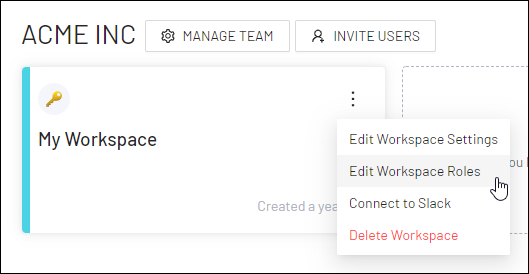
The Workspace Roles screen appears.
Under the Workspace Role column header, modify a user's workspace role as needed (see Role Details to learn more).
.png)
Navigate to Data Access Roles
In the Toolbar, hover your cursor over Settings and then select Data Access Roles.
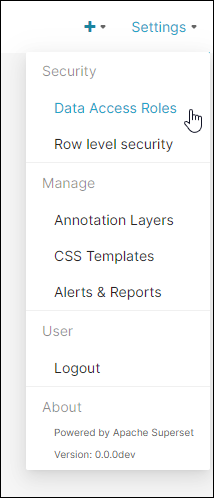
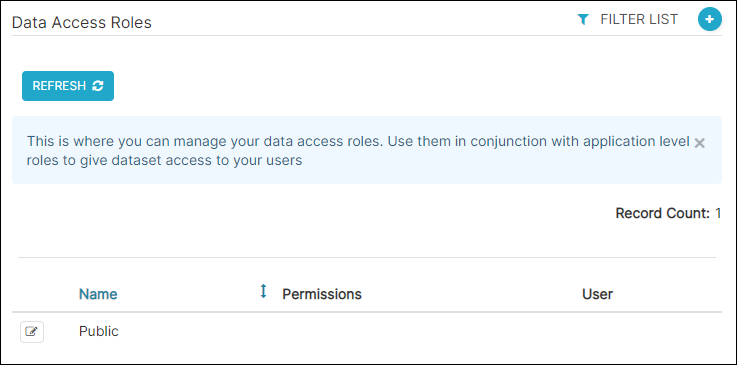
The Data Access Roles screen appears.
Add a Data Access Role
Select the plus icon to add a new access record.
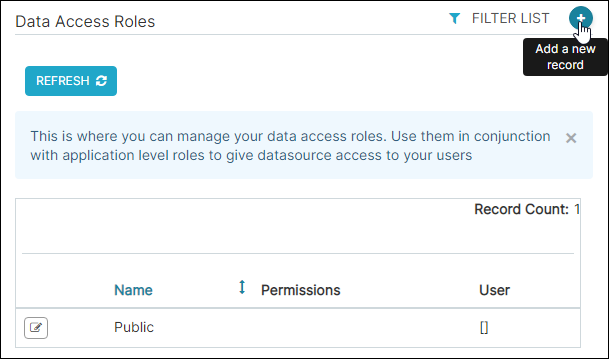
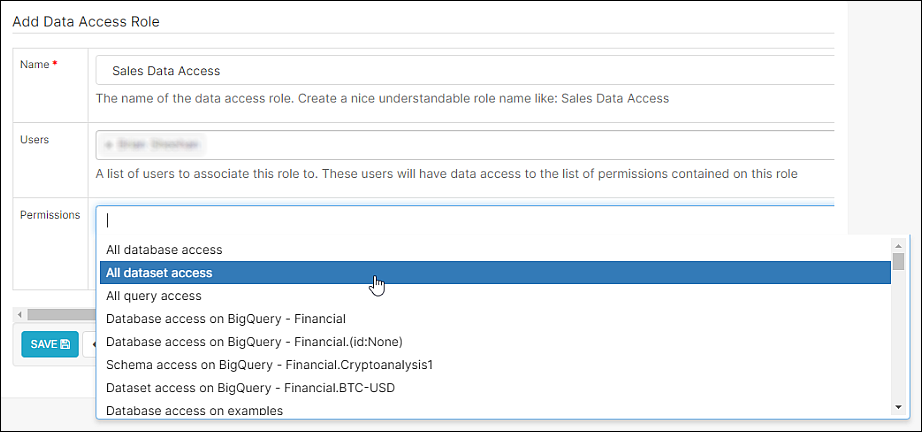
The Add Data Access Role screen appears.
In the Name field, enter a memorable name for the data access role.
In the Users field, select one or more users to assign to the data access role.
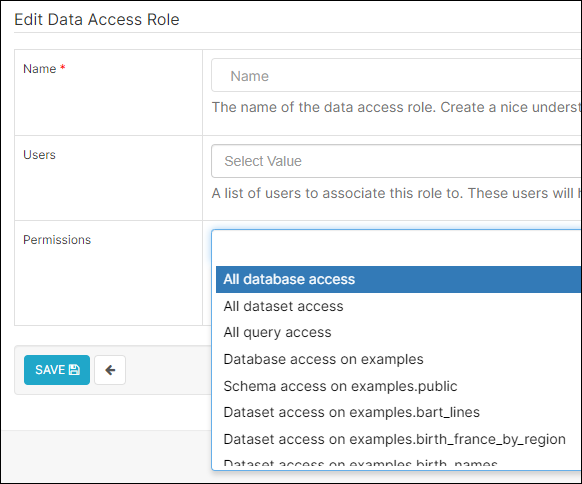
Lastly, in the Permissions field, select one or more data access permissions to associate with the role or leave this field blank if using Row Level Security to create more granular data access.
Types of Permissions
All database access
All dataset access
All query access
Database access on <DB Connection>
Catalog access on <DB Connection>.<Catalog>
Schema access on <DB Connection>.<Catalog>.<Schema>
Dataset access on <DB Connection>.<Dataset>
When done, select Save.
Levels of Data Access Role Coverage
By default, all limited roles (Secondary Creator, Limited Creator, Viewer, Dashboard Interactor, and Dashboard Viewer) have no access to data. To grant access to specific assets, users must be added to a Data Access Role (DAR).
Once added, the level of access depends on the user's role:
Viewer-type roles gain access to Dashboards and Charts powered by that data.
Creator-type roles can additionally build new assets using those datasets.
Users with SQL Lab access can also query the allowed data directly in SQL Lab.
Wide Access
All database access: This is the most permissive option. It grants access to all database connections in the Workspace. This includes all datasets, and also all tables for SQL Lab (for users with SQL Lab access).
All dataset access: Grants access to all datasets.
All query access: Grants access to the Query History.
Specific Permissions
More granular data access controls are also available:
Database Access: Grants access to an entire DB Connection, including all catalogs, schemas, and tables/datasets.
Catalog Access: Grants access to an entire catalog, including all schemas and table/datasets.
Schema Access: Grants access to all tables and datasets within the schema.
Dataset Access: This is the most restrictive access. It grants access to a specific dataset.
Control Data Access with Row Level Security
Row Level Security (RLS) is a powerful feature that enables you to exert a granular level of control over who can query—and view—specific data in selected datasets. This level of query-based access control empowers organizations to align data access permissions (via roles) with larger-scale business initiatives.
You can find more information and a walkthrough on the Row Level Security (RLS) page.
Was this article helpful?